From a website to a clean file — in five steps.
Tessera turns a public web page into structured data you can keep. Describe what you need, choose how you want it, and review the result before it’s final. Here’s the whole flow, stage by stage — exactly what you’ll see on screen.
Define
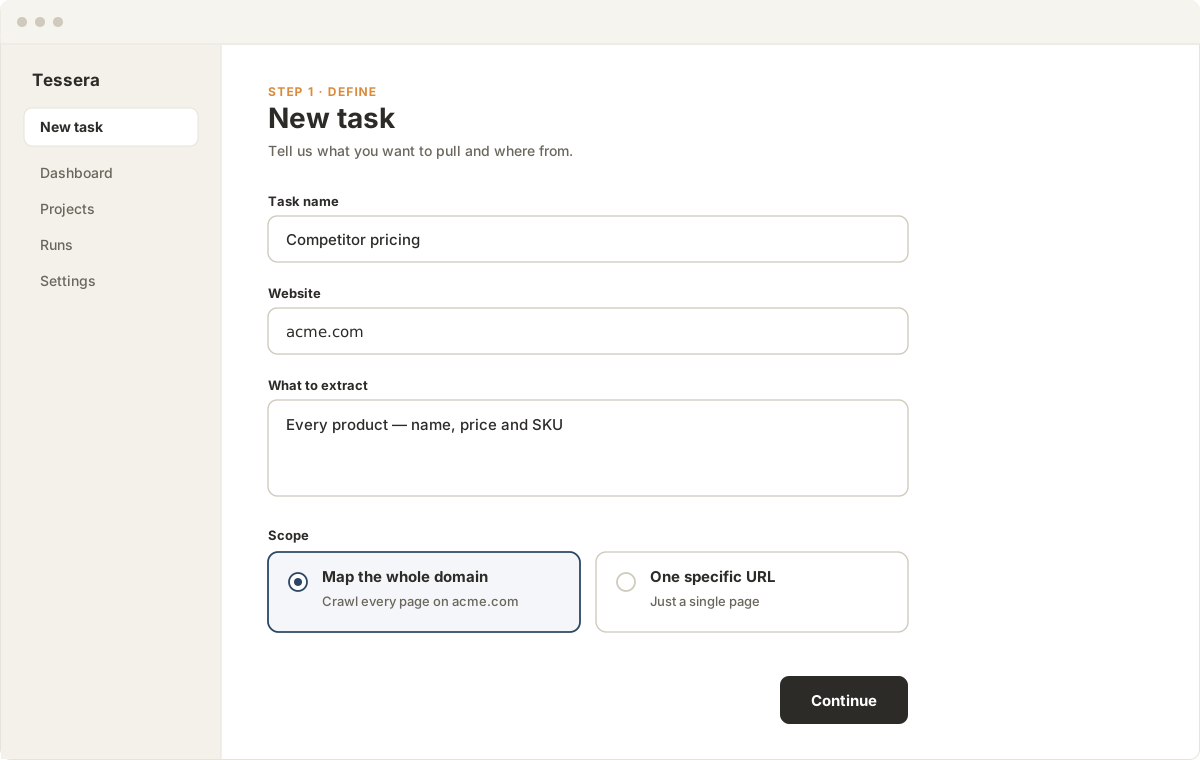
Tell Tessera what you want and where to find it.
- Give the task a name so you can find it later — e.g. “Competitor pricing”.
- Paste the website or domain you want data from.
- Describe what to extract in plain language — “every product, with name, price and SKU”.
- Set the scope: map the whole domain, or point at one specific URL.
Output format
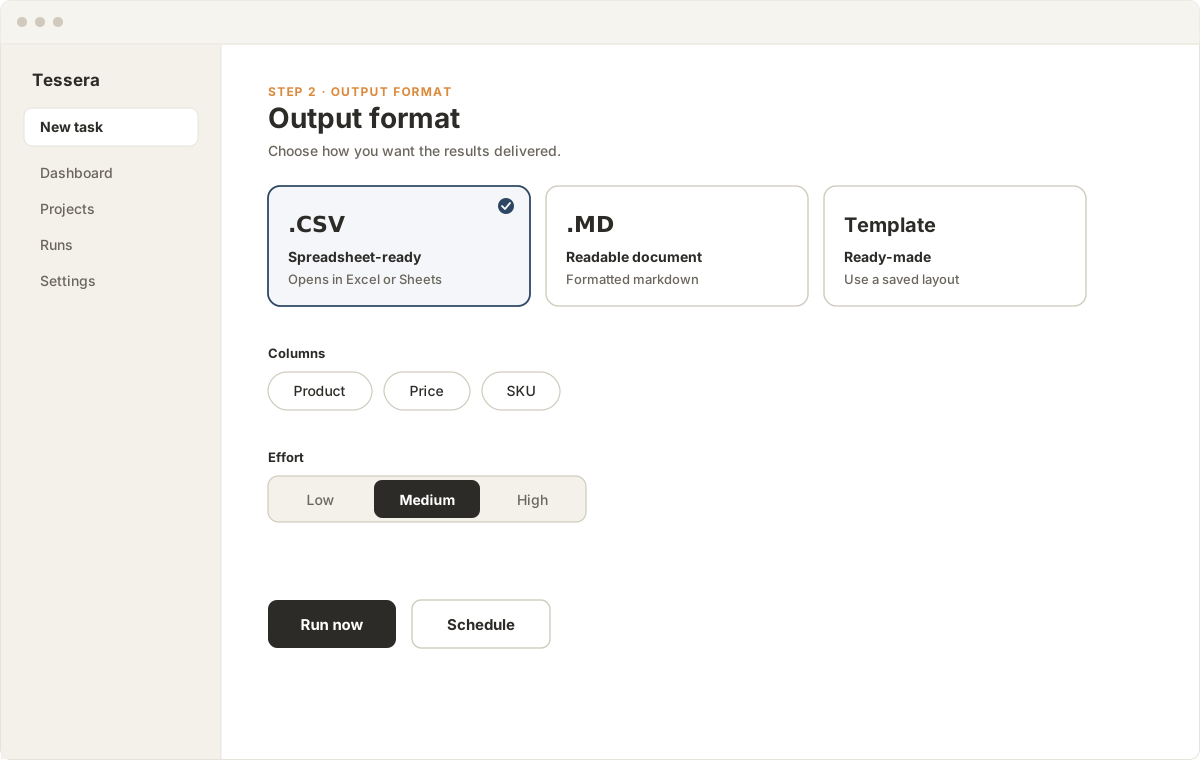
Choose the shape of the file you get back.
- Pick a format: a spreadsheet-ready .CSV, a readable .MD document, or a saved template.
- For a CSV, name the columns you want; for Markdown, the sections.
- Set the effort — low, medium or high — to balance speed against depth.
- Run it now, or schedule it to run later or on a cadence.
The live run
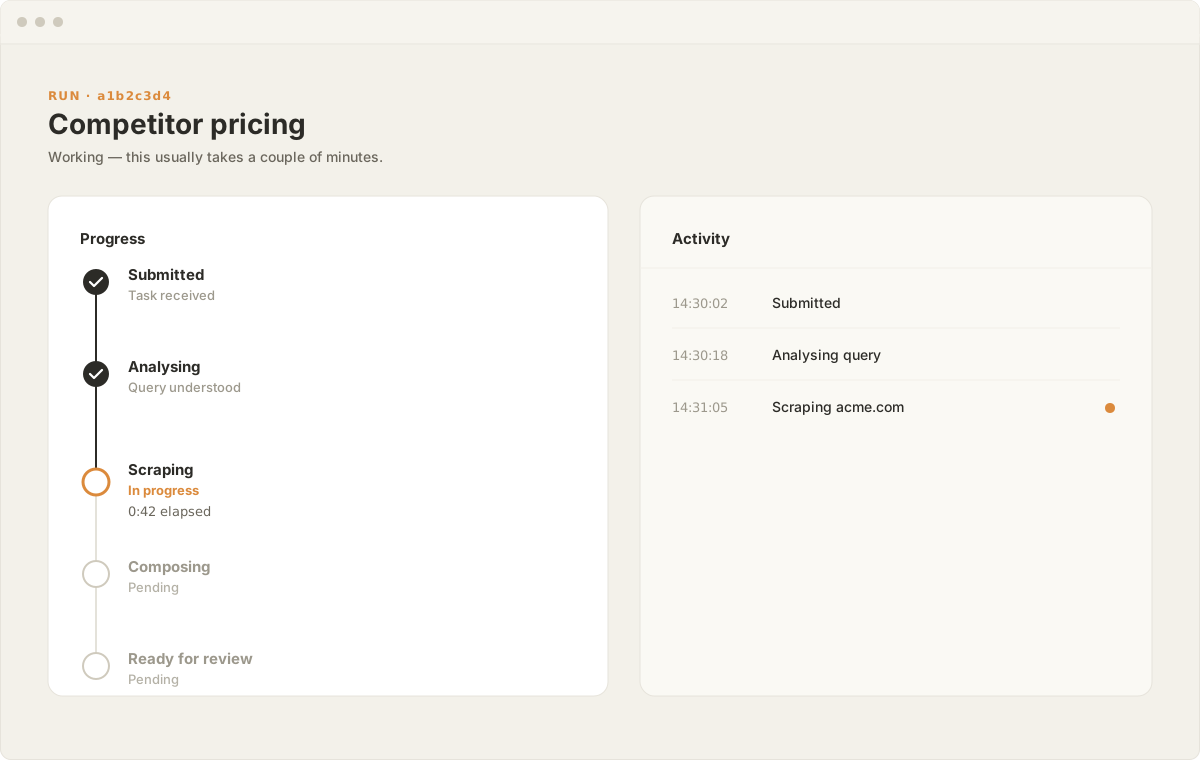
Watch the run work through each stage.
- The run moves through Submitted → Analysing → Scraping → Composing → Ready.
- The stage that is currently running shows a live timer ticking from when it started.
- As each stage finishes the timer moves up to the next one — nothing is left guessing.
- An activity log records each step with a timestamp as it happens.
Review
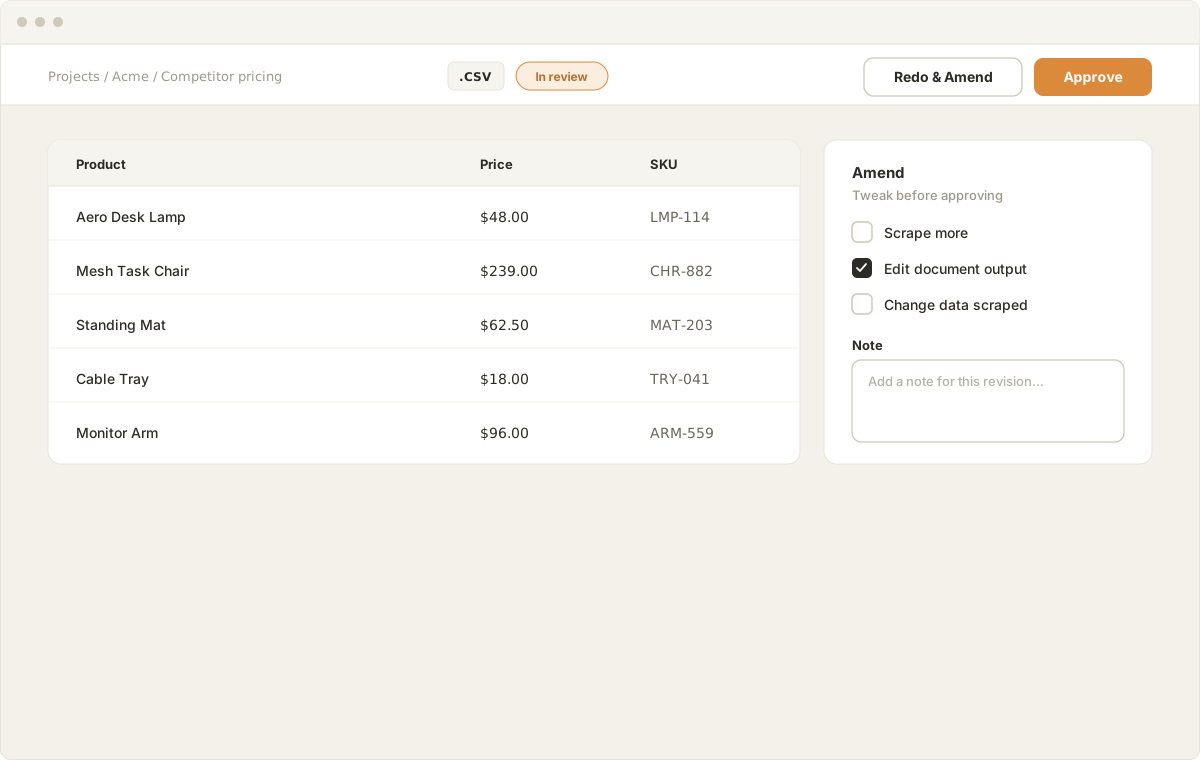
Nothing is final until you sign off.
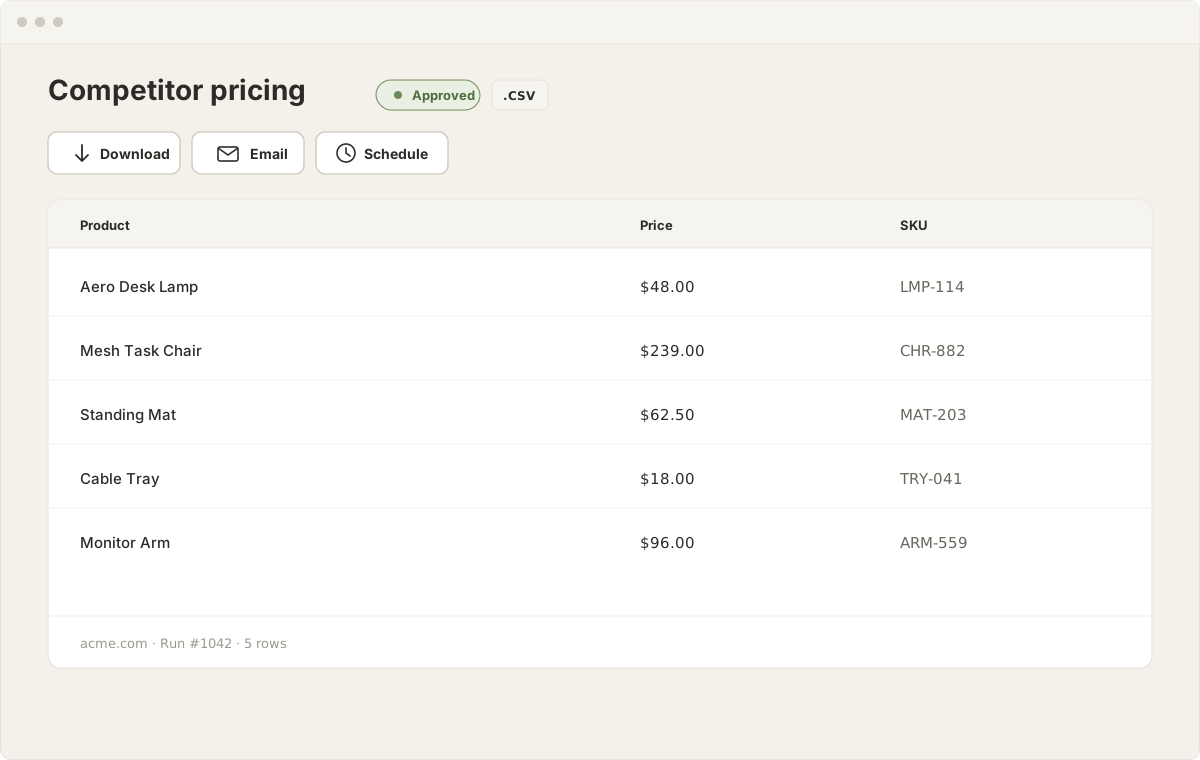
- See the result as a clean table or document before you keep it.
- Approve it as-is, or open Amend to ask for changes.
- Amend lets you scrape more, edit the document output, or change the data scraped — with a note.
- Resubmitting sends the task straight back through the live run from the first stage.
Catalogue
Every approved report stays yours to use.
- Approved files stay browsable in your catalogue — nothing disappears.
- Download the file, email it, or schedule the task to run again for future you.
- Each report keeps its source, run number and row count for reference.
Where your work lives.
Two places keep the bigger picture: Projects group related tasks, and the Dashboard shows what’s happening right now.
Projects
Group related tasks together.
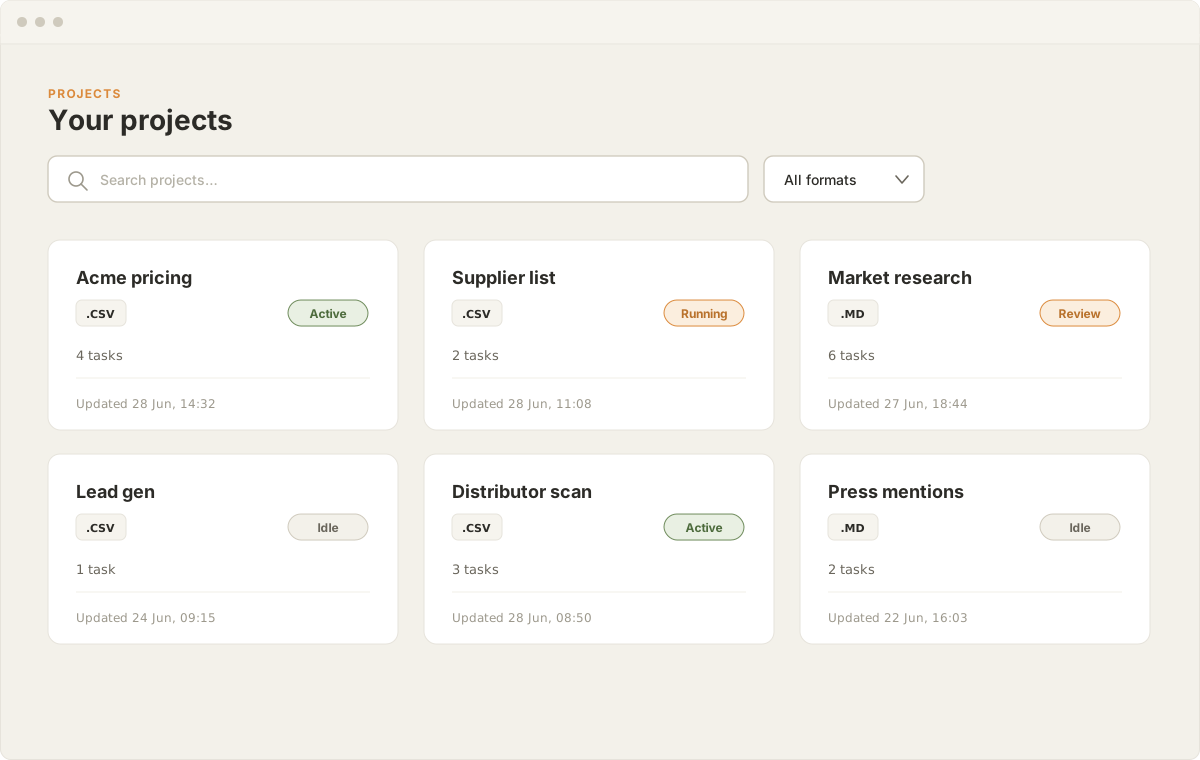
Tasks for the same job live under a project, so a recurring scrape or a set of related extractions stays in one place. Each project card shows its format, how many tasks it holds, its status, and when it was last updated.
Dashboard
See everything at a glance.
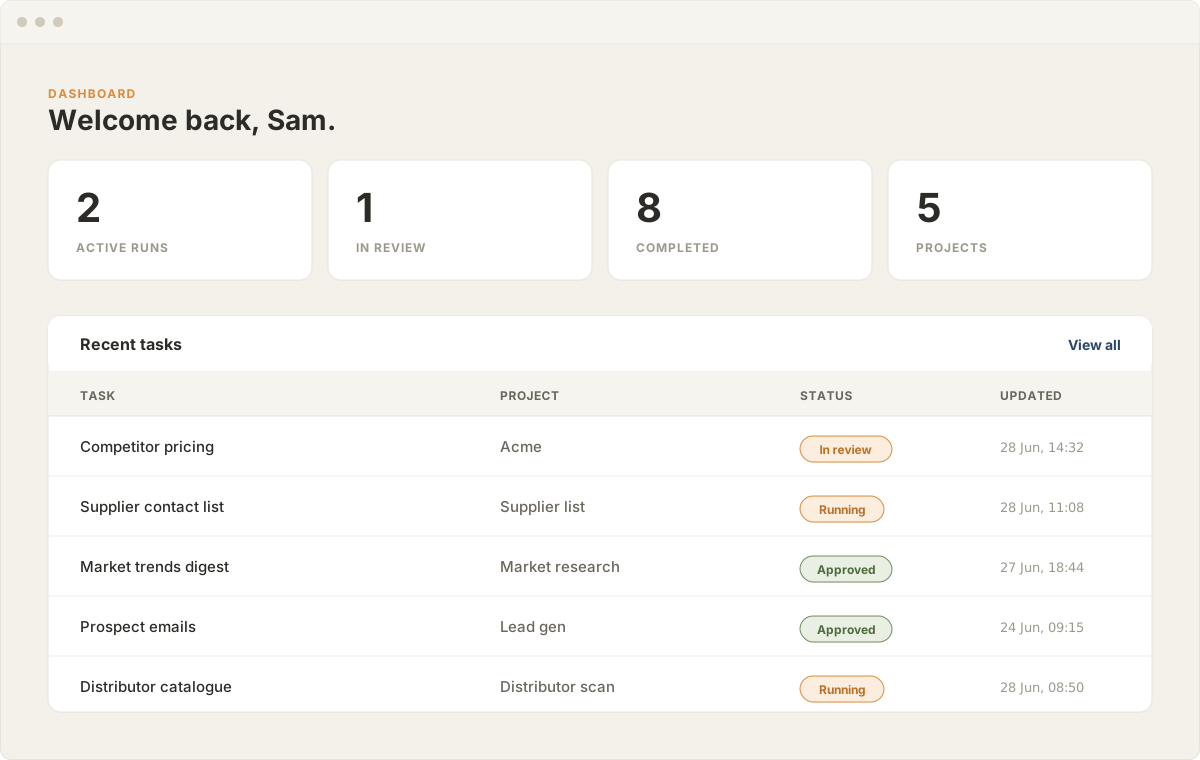
The dashboard is home base: a quick count of active runs, tasks in review, completed tasks and projects, plus a list of your most recent tasks with their status and the time each was run or completed.
Ready to try it?
Start your first task and Tessera will turn a website into a clean, structured file you can review and keep.